Two-table relationship
The two-table scenario includes a subject table and a linked table. Subject tables contain PII details about people, companies, or any other entities. Linked tables contain time-series or events data, one or many of which belong to a subject.
For example, the figure below shows the customers and purchases tables from the CDNOW dataset. The highlighted rows show the relationship between subject records from the customers table and their related events records from the purchases table.
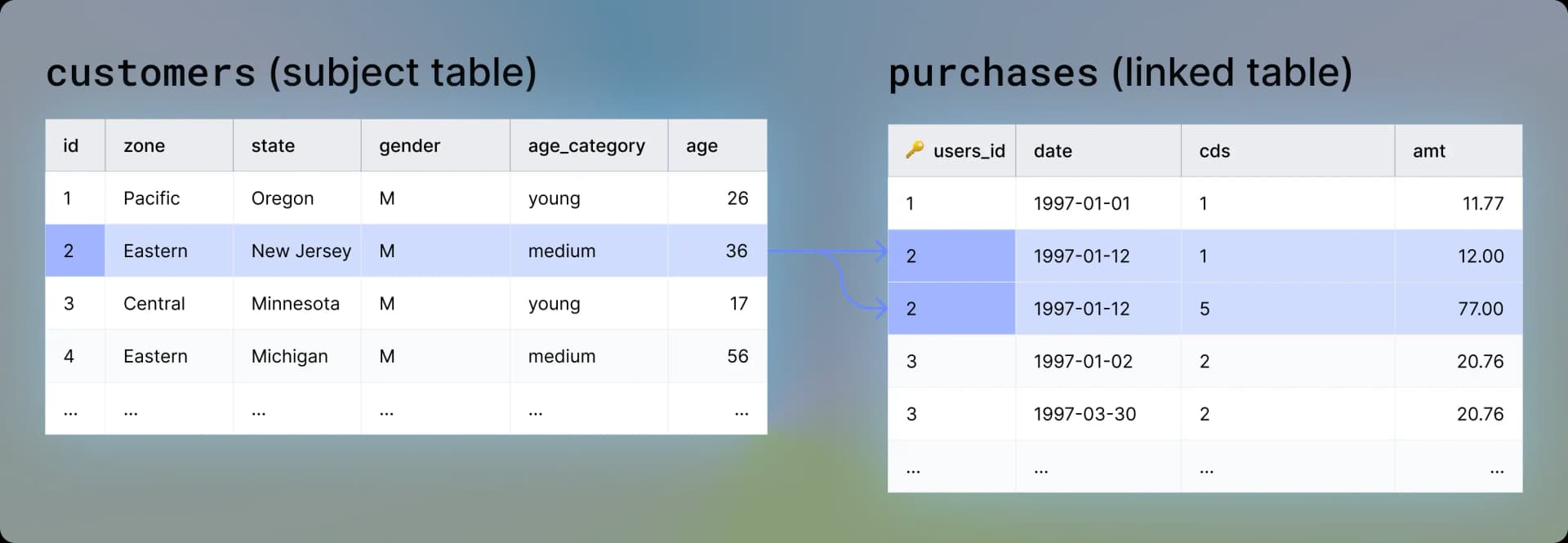
To train a generator on a two-table dataset, you need to define the foreign key from the purchases table that points to the primary key to the users table.
If you use the web interface, add both tables to the generator and set their relationship.
Steps
- In MOSTLY AI, select Generators from the top menu.
- On the Generators page, click + New generator.

- Upload the
customerstable.- Click Upload file.
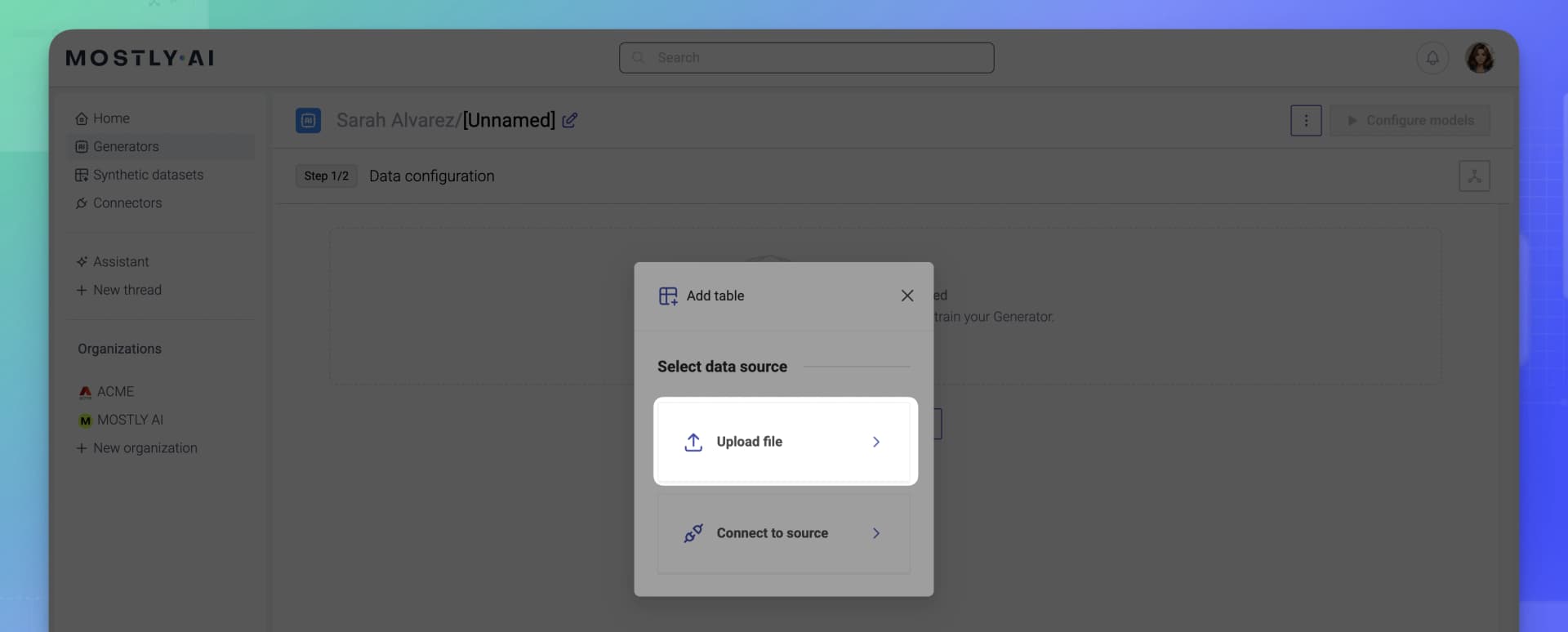
- Upload the
customerstable, leave its name ascustomers, and click Proceed.
Step result: The table is now added to the generator.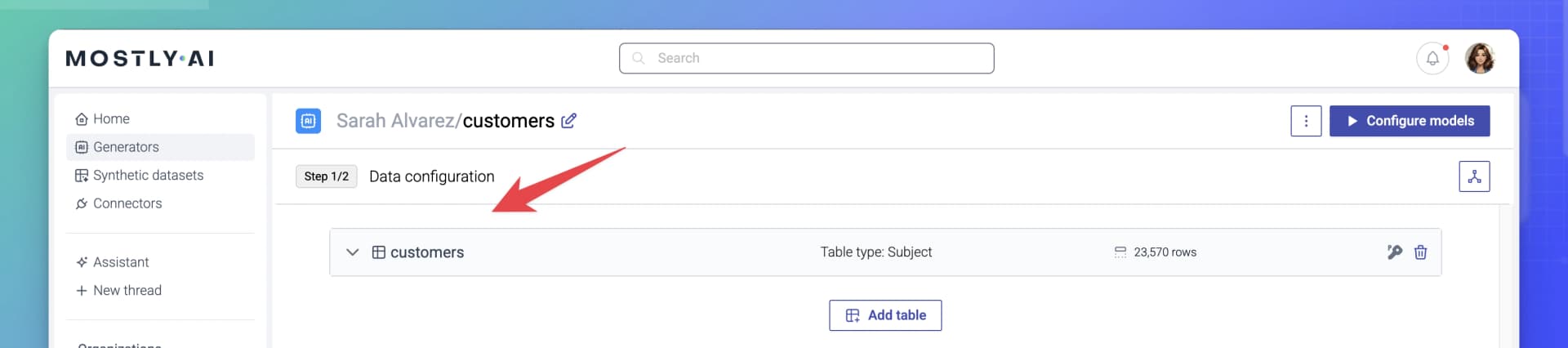
- Click Upload file.
- Upload the
purchasestable.- In the generator, click Add table.
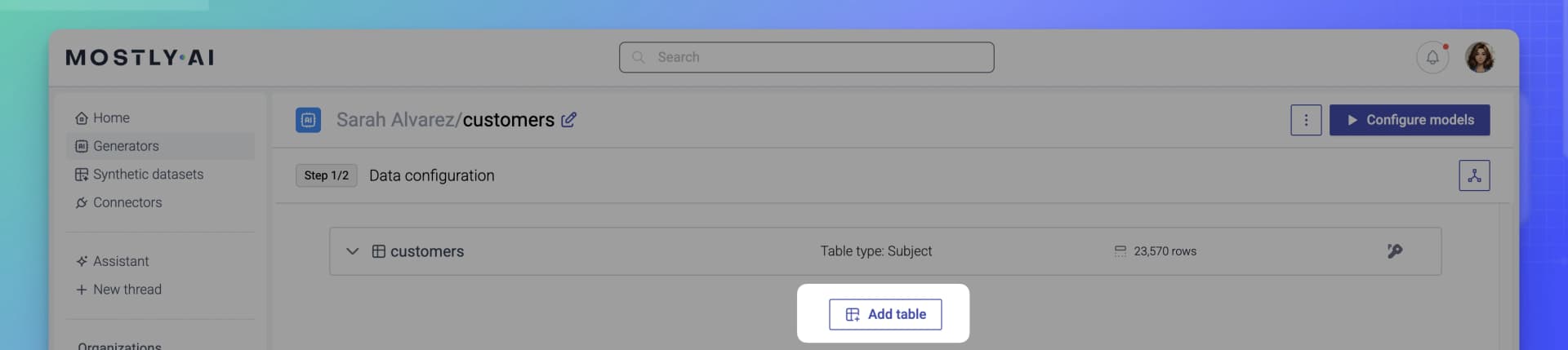
- Click Upload files, upload the table, leave its name as
purchases, and click Proceed.
Step result: The table is now added to the generator.
- In the generator, click Add table.
- Set the relationship between the
customersandpurchasestables.- Expand the
purchasestable. - Expand Table relationships.
- Click Modify.

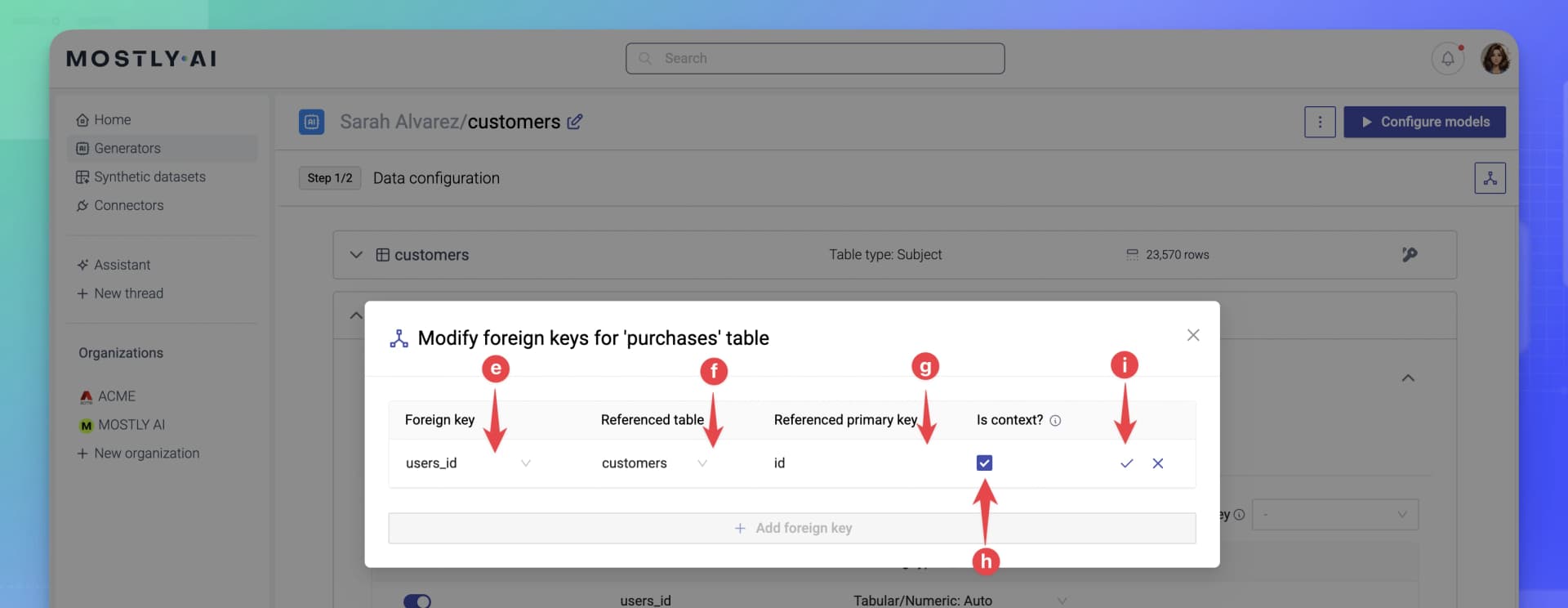
- In the pop-up, click Add foreign key.
- For Foreign key, select the foreign key column for the
purchasestable. In this case, theusers_idcolumn. - For Referenced table, select the table to which the foreign key points to. In this case, the
customerstable. - For Referenced primary key, select the primary key column of the referenced table. In this case, the
idcolumn. - Select the Is context checkbox.
- Click the confirmation button.
- Expand the
- Click Close in the upper right to close the drawer.
Result
The two-table relationship foreign key is now set. The linked table purchases is now nested and indented under its subject table customers.
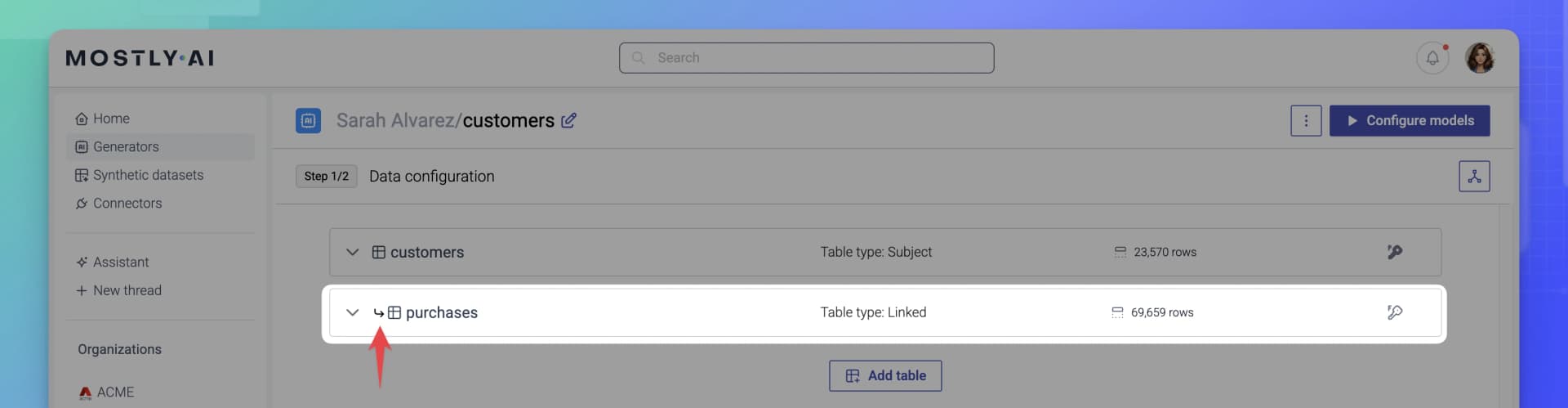
With the context relationship defined, the generator can capture the correlations and retain the referential integrity between the two tables during AI model training.
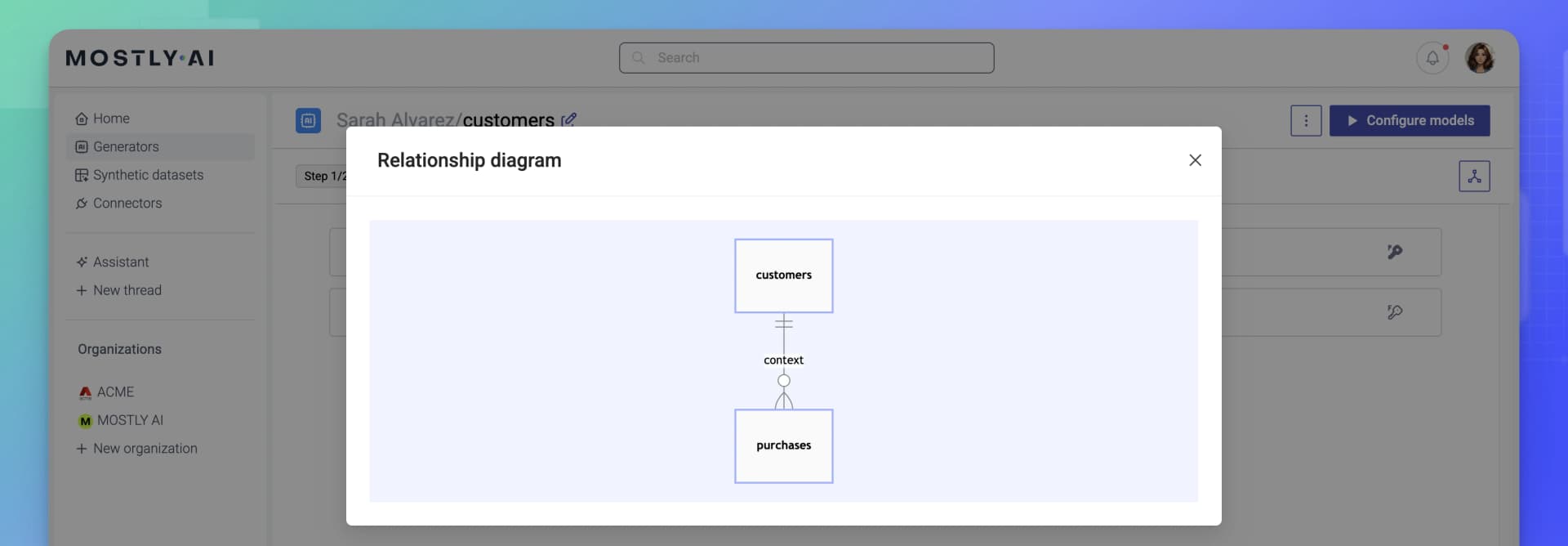
Optionally, you can click Relationship diagram to get an overview of all table relationships.
What’s next
You can now train the generator on the CDNOW dataset with the default options. To do so, click Configure models and then Start training.